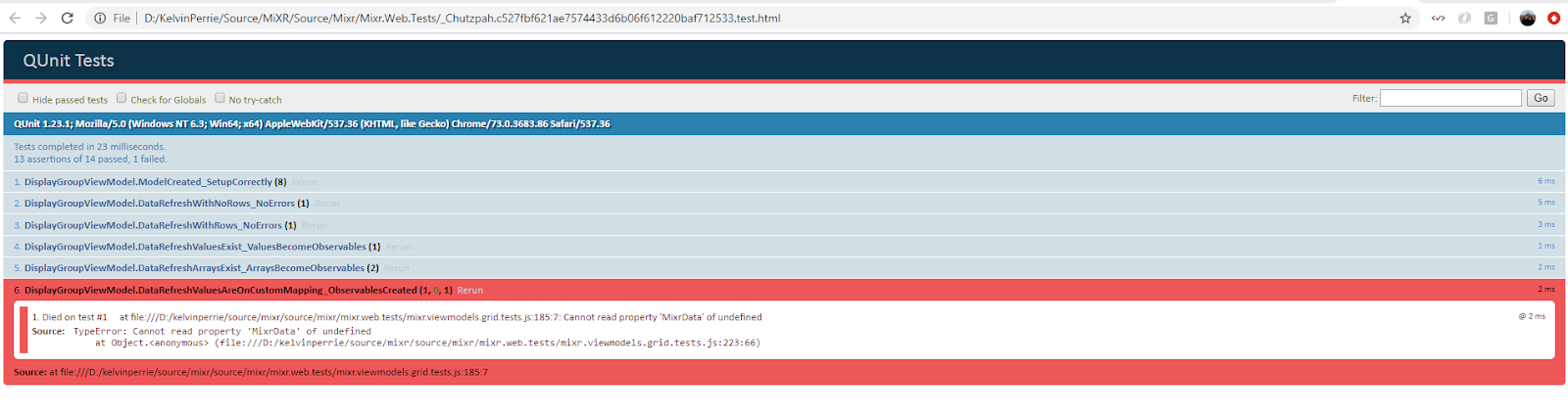
ugh.
Add a breakpoint in visual studio
Run the unit test via the test explorer. The test runs and a page opens in VS and explodes. I dunno why, whatever, ignore that bit; just leave it open.
When chutzpah runs the test it creates an html file, because you're paused in debug in VS then the file will stay there, go to the root of the project (or whereever you chutzpah.json file is) and locate the html file
Open the file in chrome (or whatever) and then use the browser dev tools to debug, or add console.logs to your unit test or something
Monday, 29 April 2019
Running javascript tests in visual studio Test Explorer using Chutzpah
Add the Chutzpah Test Adapter for the Test Explorer extension into visual studio
Add some js files to your test project that will hold the javascript tests
Add a chutzpah.json settings file if you want? I found with mine that Chutzpah wasn't respecting the order that the references were added in, so it wasn't much help
Write your javascript tests
After one of visual studio's test discovery phases (e.g. runs after a build) the javascript tests should show in the Test Explorer
When you run tests the JS ones will also run
Tuesday, 5 March 2019
.net core console adding log4net
Log4Net will not use the log settings in the appsetting.json file, it needs a log4net.config file ðŸ˜
- add package
- add Log4Net into the logging framework
Monday, 4 March 2019
.net core making config accessible to all classes
in .net framework ConfigurationManager could be accessed anywhere. The .net core method of accessing configuration requires some setup, so rather than doing that on every class set it up once and add it to the services so can be accessed via dependancy injection.
* in the startup method get a IConfigurationRoot based on the config file
* add the IConfigurationRoot object to the services collection
* in a class that needs to access configuration, get a concrete class via DI
Save the value into a private var accessible to the entire class.
* Any code in the class can access config via the private var
.net core console app using SeriLog to log to file with config in json file
1. add the packages
* don't need serilog.sinks.console if just logging to file / or not using serilog console (can use standard console logger Microsoft.Extensions.Logging.Console)
2. when the app starts call a setup method to configure everything (need something similar when/if setting up dependancy injection)
2a. in the configuration method, create a config (IConfigurationRoot) based on the json file
2b. pass the config into the configuration of the serilog
2c. add the serilog to the services
* you only need the AddSerilog line. The console lines adds console logging, the addconfiguration line applies configuration for the console logging but doesn NOT effect serilog
3. add a json file to the project
3a. ensure copy local is set so file goes with exe to output directory
Properties -> Copy to Output Directory -> Copy if newer
3b. configure serilog
Entire Program class
class Program
{
static void Main(string[] args)
{
Console.WriteLine("Hello,
starting processing");
var serviceProvider = ConfigureServices(new ServiceCollection());
var core =
serviceProvider.GetService<Core>();
core.Process();
Console.WriteLine("Done, press
enter to exit");
Console.Read();
}
private static IServiceProvider
ConfigureServices(IServiceCollection services)
{
// add in our config file
var builder = new ConfigurationBuilder()
.SetBasePath(Directory.GetCurrentDirectory())
.AddJsonFile("appsettings.json");
var config = builder.Build();
// serilog configuration
Log.Logger = new LoggerConfiguration()
.ReadFrom.Configuration(config)
.CreateLogger();
services.AddSingleton(typeof(IConfigurationRoot),
config); //
add our config to the services collection
services.AddSingleton<IChangeLogService, ChangeLogService>();
services.AddSingleton<IFormsToolKitService,
FormsToolKitService>();
services.AddSingleton<IFormsToolKitPdfService,
FormsToolKitPdfService>();
services.AddSingleton<ISendMailService, SendMailService>();
services.AddSingleton(typeof(ILogger<>), typeof(Logger<>));
services.AddSingleton<ILoggerFactory, LoggerFactory>(); // kinda probably
don't need this as we have the above line
services.AddLogging(configure =>
configure.AddConsole()
.AddSerilog()
.AddConfiguration(config.GetSection("Logging"))
);
services.AddTransient<Core>();
var serviceProvider =
services.BuildServiceProvider();
return serviceProvider;
}
}
Thursday, 28 February 2019
EntityFramework Core -> scaffold POCO classes from DB into .Net Standard proj
- Add Microsoft.EntityFrameworkCore.SqlServer from Nuget
- From the Package Manager Console install entity frameworkcore tools
Install-Package Microsoft.EntityFrameworkCore.Tools
- Have a project that targets Core or Framework as
the startup project in the solution (or can use the –StartupProject ‘MyStartUpProject’ flag during
the scaffold)
- Tell EF to build the context and POCO classes
Scaffold-DbContext "Server=xxxxx;Database=xxxxxx;Trusted_Connection=True;”
Microsoft.EntityFrameworkCore.SqlServer –OutputDir Models –Project Tdhb.MyStandardLib
- Puts the ‘Models’ folder into the Tdhb.MyStandardLib project
So you change the database didn’t you. Now the POCOs are out of sync with the DB.
- Run the scaffold command again but put –Force on the end to overwrite existing files
Scaffold-DbContext
"Server=xxxxx;Database=xxxxxx;Trusted_Connection=True;"
Microsoft.EntityFrameworkCore.SqlServer -OutputDir Models -Project Tdhb.MyStandardLib
-Force
If not having a startup project that targets Core of
Framework then get the error (either add project (core or framework) and set as startup or use the StartupProject flog:
Startup project 'Tdhb.MyStandardLib' targets framework
'.NETStandard'. There is no runtime associated with this framework, and
projects targeting it cannot be executed directly. To use the Entity Framework
Core Package Manager Console Tools with this project, add an executable project
targeting .NET Framework or .NET Core that references this project, and set it
as the startup project; or, update this project to cross-target .NET Framework
or .NET Core. For more information on using the EF Core Tools with .NET
Standard projects, see https://go.microsoft.com/fwlink/?linkid=2034705
.net programmatically download a file
/// <summary>
///
retrieves the created pdf file
/// </summary>
private void DownloadFile(string documentSourceUri, string outputFilePath)
{
WebClient client = new WebClient
{
Credentials = new
NetworkCredential(_ftkGetUser, _ftkGetPassword)
};
client.DownloadFile(documentSourceUri, outputFilePath);
}
Subscribe to:
Posts (Atom)