Monday, 21 June 2021

update url that onpremise azure devops deployment agents connect to e.g. http -> https

 Have to remove and reconfigure.


  1. Remove the existing agent
    1. Look in the services snapin and locate the service, called something like ‘Azure Pipelines Agent (tfs.Group Name.ServerName)’
    2. Have a look at the properties and see where it is installed
    3. Run powershell as an admin
    4. Navigate to the above install location
    5. Service will uninstall, drop out off the tfs front end
  2. Make sure the server can connect to the internet i.e. put proxy settings into IE, cause it has to download some stuff
  3. Get the pool install command from the webfront end
    1. Go to collection Settings -> Deployment pools then click on the appropriate pool
    2. Click Details tab
    3. copy the powershell script

  4. Run the powershell script on the server
    1. When prompted for the authentication type 'integrated'
    2. When prompted for user press enter to use the default
  5. Go back to TFS front end, for each project that uses the deployment group, will need to add the tags to each server again
    1. Go into the project (from web)
    2. Go to Project settings -> Pipelines -> Deployment Groups
    3. Click on the deployment group
    4. On the Target tab add in a Tag for each of the servers


Monday, 24 February 2020

Setting up Azure Devops on premise to access Nuget over proxy


  • Need to add proxy settings to the nuget.config file; this has to be done using the nuget command line (as it will encrypt the password for the user)
  • To do this need to determine what user the build agent is running as – each user has their own nuget.config file
  • You can’t copy another nuget.config file – the password for the proxy is encrypted and is done at a user level – e.g. if you are logged in as userX and encrypt the password and copy the values to the config for userY who is setup to run the build agent, then the build wouldn’t be able to decrypt it. So, you have to login/RDP to the devops machine as the user the build agent is running as and setup the nuget.config while logged in as that user.
  • If the build agent as running as Network Service change it do a service account in the services control panel (I guess! That's what I did)
  • RDP in and run nuget.exe. If you can find it. I found it as part of a previous package. Otherwise have to install manually? Doesn’t appear to be exposed as part of the azure devops install.
  • Use ‘nuget config’ commands
    • Nuget config –Set http_proxy=http://myproxy.do.com:3128
    • Nuget config –Set http_proxy.user=domain\myserviceaccount
    • Nuget config –Set http_proxy.password=mypassword
  • The password will be automatically encrypted in the nuget.config file
  • Can have a look in the config file C:\Users\[serviceaccount]\AppData\Roaming\NuGet\
  • Restart the agent service?


Tuesday, 29 October 2019

Monday, 29 April 2019

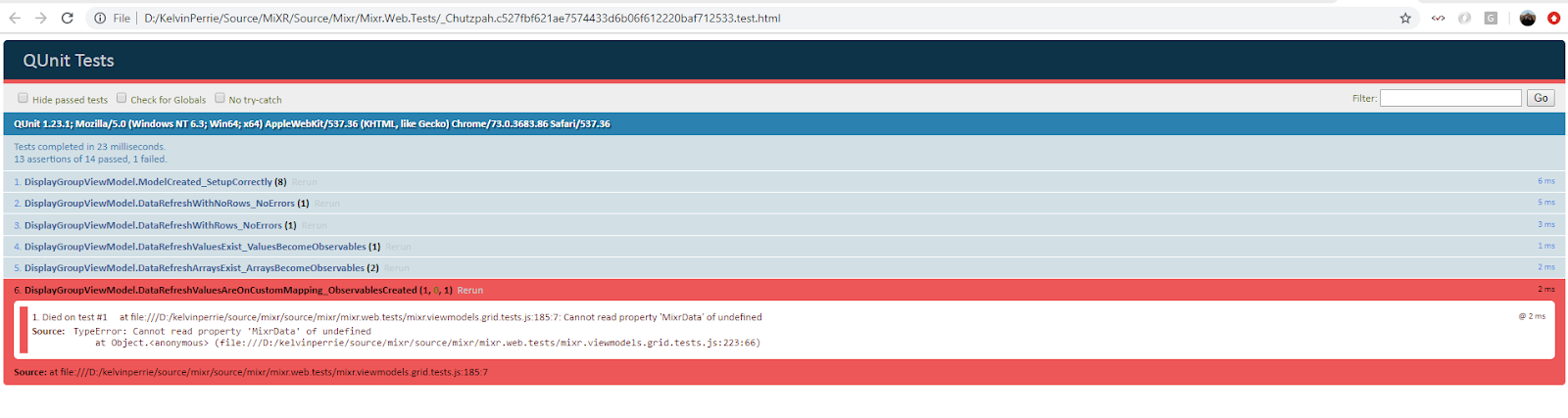
debug js test from VS via Chutzpah

ugh.

Add a breakpoint in visual studio


Run the unit test via the test explorer. The test runs and a page opens in VS and explodes. I dunno why, whatever, ignore that bit; just leave it open.


When chutzpah runs the test it creates an html file, because you're paused in debug in VS then the file will stay there, go to the root of the project (or whereever you chutzpah.json file is) and locate the html file


Open the file in chrome (or whatever) and then use the browser dev tools to debug, or add console.logs to your unit test or something


Running javascript tests in visual studio Test Explorer using Chutzpah


Add the Chutzpah Test Adapter for the Test Explorer extension into visual studio


Add some js files to your test project that will hold the javascript tests

Add a chutzpah.json settings file if you want? I found with mine that Chutzpah wasn't respecting the order that the references were added in, so it wasn't much help

Write your javascript tests

After one of visual studio's test discovery phases (e.g. runs after a build) the javascript tests should show in the Test Explorer

When you run tests the JS ones will also run


Tuesday, 5 March 2019

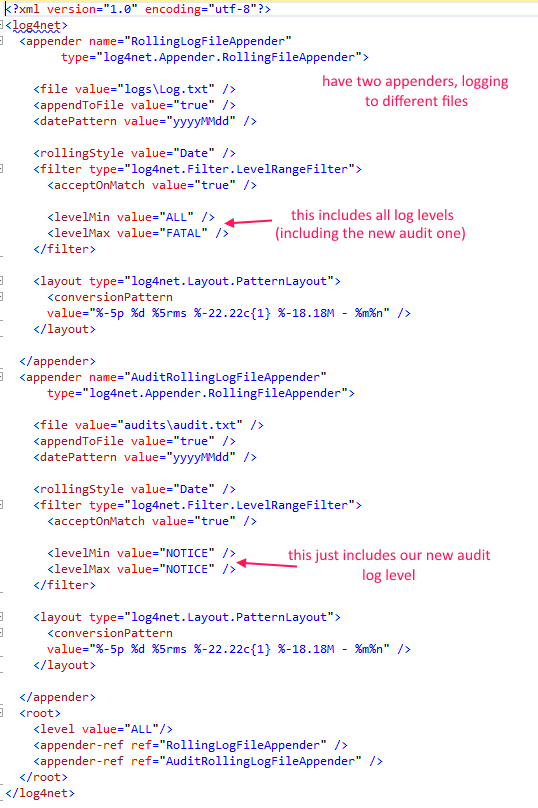
.net core console adding log4net


Log4Net will not use the log settings in the appsetting.json file, it needs a log4net.config file 😭


  • add package


  • add config file

  • ensure it is set to copy to output directory

  • update config in file as required

  • add Log4Net into the logging framework

  • get logger via dependancy injection as per standard

Monday, 4 March 2019

.net core making config accessible to all classes


in .net framework ConfigurationManager could be accessed anywhere. The .net core method of accessing configuration requires some setup, so rather than doing that on every class set it up once and add it to the services so can be accessed via dependancy injection.


* in the startup method get a IConfigurationRoot based on the config file


* add the IConfigurationRoot object to the services collection


* in a class that needs to access configuration, get a concrete class via DI
Save the value into a private var accessible to the entire class.

* Any code in the class can access config via the private var


.net core console app using SeriLog to log to file with config in json file


1. add the packages

* don't need serilog.sinks.console if just logging to file / or not using serilog console (can use standard console logger Microsoft.Extensions.Logging.Console)

2. when the app starts call a setup method to configure everything (need something similar when/if setting up dependancy injection)


2a. in the configuration method, create a config (IConfigurationRoot) based on the json file

2b. pass the config into the configuration of the serilog


2c. add the serilog to the services


* you only need the AddSerilog line. The console lines adds console logging, the addconfiguration line applies configuration for the console logging but doesn NOT effect serilog

3. add a json file to the project

3a. ensure copy local is set so file goes with exe to output directory
Properties -> Copy to Output Directory -> Copy if newer

3b. configure serilog


Entire Program class


    class Program
    {
        static void Main(string[] args)
        {
            Console.WriteLine("Hello, starting processing");

            var serviceProvider = ConfigureServices(new ServiceCollection());
                                  
            var core = serviceProvider.GetService<Core>();
            core.Process();

            Console.WriteLine("Done, press enter to exit");
            Console.Read();
        }

        private static IServiceProvider ConfigureServices(IServiceCollection services)
        {
            // add in our config file
            var builder = new ConfigurationBuilder()
                .SetBasePath(Directory.GetCurrentDirectory())
                .AddJsonFile("appsettings.json");
            var config = builder.Build();
           
            // serilog configuration
            Log.Logger = new LoggerConfiguration()
                .ReadFrom.Configuration(config)
                .CreateLogger();

            services.AddSingleton(typeof(IConfigurationRoot), config); // add our config to the services collection
            services.AddSingleton<IChangeLogService, ChangeLogService>();
            services.AddSingleton<IFormsToolKitService, FormsToolKitService>();
            services.AddSingleton<IFormsToolKitPdfService, FormsToolKitPdfService>();
            services.AddSingleton<ISendMailService, SendMailService>();
            services.AddSingleton(typeof(ILogger<>), typeof(Logger<>));
            services.AddSingleton<ILoggerFactory, LoggerFactory>(); // kinda probably don't need this as we have the above line
            services.AddLogging(configure => configure.AddConsole()
                .AddSerilog()
                .AddConfiguration(config.GetSection("Logging"))
            );
            services.AddTransient<Core>();

            var serviceProvider = services.BuildServiceProvider();
            return serviceProvider;
        }


    }


Thursday, 28 February 2019

EntityFramework Core -> scaffold POCO classes from DB into .Net Standard proj


  • Add Microsoft.EntityFrameworkCore.SqlServer from Nuget
  • From the Package Manager Console install entity frameworkcore tools
Install-Package Microsoft.EntityFrameworkCore.Tools
  • Have a project that targets Core or Framework as the startup project in the solution (or can use the –StartupProject ‘MyStartUpProject’ flag during the scaffold)
  • Tell EF to build the context and POCO classes
Scaffold-DbContext "Server=xxxxx;Database=xxxxxx;Trusted_Connection=True;” Microsoft.EntityFrameworkCore.SqlServer –OutputDir Models –Project Tdhb.MyStandardLib
  • Puts the ‘Models’ folder into the Tdhb.MyStandardLib project


So you change the database didn’t you. Now the POCOs are out of sync with the DB.
  • Run the scaffold command again but put –Force on the end to overwrite existing files
Scaffold-DbContext "Server=xxxxx;Database=xxxxxx;Trusted_Connection=True;" Microsoft.EntityFrameworkCore.SqlServer -OutputDir Models -Project Tdhb.MyStandardLib -Force


If not having a startup project that targets Core of Framework then get the error (either add project (core or framework) and set as startup or use the StartupProject flog:

Startup project 'Tdhb.MyStandardLib' targets framework '.NETStandard'. There is no runtime associated with this framework, and projects targeting it cannot be executed directly. To use the Entity Framework Core Package Manager Console Tools with this project, add an executable project targeting .NET Framework or .NET Core that references this project, and set it as the startup project; or, update this project to cross-target .NET Framework or .NET Core. For more information on using the EF Core Tools with .NET Standard projects, see https://go.microsoft.com/fwlink/?linkid=2034705

.net programmatically download a file


        /// <summary>
        ///  retrieves the created pdf file
        /// </summary>
        private void DownloadFile(string documentSourceUri, string outputFilePath)
        {
            WebClient client = new WebClient
            {
                Credentials = new NetworkCredential(_ftkGetUser, _ftkGetPassword)
            };
            client.DownloadFile(documentSourceUri, outputFilePath);
        }

Monday, 25 February 2019

SSIS setting up ADO.net source & connection using params/variables


Problem:

The .net 'OracleClient Data Provider' does not appear to save the password locally so fails when run in visual studio - but runs when deployed and the password is set via the configuration in SSMS. The .net 'ODP.NET, Managed Driver' works locally, but does not work when deployed on servers (requires components to be installed). This means that two connections are setup in the package; the Managed Driver provider connection is used locally, then the sources are switched to use the OracleClient provider connection before being deployed. And that is a pain.

Solution:

If the ConnectionString value of the OracleClient provider is setup in the expressions then it will work because the password is explicitly set. However, the connectionstring needs to vary depending on where (what environment) the package is deployed, so it needs to be in something that can be configured after deployment. Putting the connection string in a param means it is visible to people from SSMS; making the param sensitive stops it being visible but makes it difficult to know how else this package is configured (e.g. what server it is connecting too).

Get around this by having the password in a sensitive param and the rest of the connectionstring in a normal param and combine them at run time. Since params are readonly the result of the combination has to put in a variable, and the connection's connectionstring linked to that variable.

At design time if that variable does not hold a valid connectionstring then Visual Studio will freak out and mark the connection as offline, so need to have a valid connectionstring in the variable as well.

tl;dr:

  • Have parts (most of it) of the connection string in a non-sensitive param
  • Have the password in its own sensitive param
  • Build the connection string when the package starts
  • Params are readonly, so store the constructed connection string into a variable
  • Link the ConnectionString value of the connection to the variable (using expressions)
  • Keep the design time value of the variable populated to something valid so that at design time Visual Studio doesn't freak out and mark the connection as being in offline mode


Setup variable with a full connection string that can be used in Visual Studio

Link the connection's connectionstring to the variable using expressions - click on the connection and locate the expressions value in the properties

Create params to hold the password and rest of the connectionstring

When package starts have a script task to build the connectionString

On the script task give access to the params and the varaibles

In the script task build the connectionString from the params and 

Once package is deployed configure the param values as required


Thursday, 21 February 2019

SSIS manipulating variables and params in a script task


For the script task to be able to access varaibles and parameters the task needs to be given access to them. Do this by double clicking it and entering them as either readonly or readwrite values.


Getting and setting variables

string query = Convert.ToString(Dts.Variables["User::PrimaryNurseQuery"].Value);

Dts.Variables["User::PrimaryNurseQuery"].Value = query;

Getting parameters

string idsToExclude = Convert.ToString(Dts.Variables["$Package::PrimaryNurseIdsToExclude"].Value);

NOTE: needs the $


The whole thing:


try
{
    bool fireAgain = true;

    string idsToExclude = Convert.ToString(Dts.Variables["$Package::PrimaryNurseIdsToExclude"].Value);
       if (string.IsNullOrEmpty(idsToExclude))
       {
              idsToExclude = "'NoneFound'";
       }

    Dts.Events.FireInformation(10, "Build Primary Nurse SQL Command","Got idsToExclude as " + idsToExclude, "", 0, ref fireAgain);

       string query = Convert.ToString(Dts.Variables["User::PrimaryNurseQuery"].Value);

    query = query.Replace("'ReplaceMe'", idsToExclude);

       Dts.Variables["User::PrimaryNurseQuery"].Value = query;

       Dts.Events.FireInformation(10, "Build Primary Nurse SQL Command", "Query to use is " + query, "", 0,ref fireAgain);

       Dts.TaskResult = (int) ScriptResults.Success;
}
catch (Exception ex)
{
       MessageBox.Show(ex.ToString());
    Dts.Events.FireError(10, "Build Primary Nurse SQL Command", "Error: " + ex.ToString(), "", 0);
    Dts.TaskResult = (int) ScriptResults.Failure;
}

SSIS ADO.net has no option to run a query from a variable

why would you do this to me ado.net?

There is no option to run 'SQL command from variable' like the OLD DB source. Can use expressions to get around this.

No option to use a variable holding the command:


Go to the Data Flow and click on the back ground (i.e. make sure you don't have a task selected)
marvel at my naming scheme.

Go to the properties and locate the Expressions

Click the + and then the ... to open the expression builder. On the right hand side you can find the SqlCommand property for the souce object then use the expression builder to either use a variable for the whole query, or build up a query manually

Manually constructing the query looks something like this:

"SELECT field1, field2 FROM table1 WHERE table1.nhi in (" + @[User::AdmissionNhiLeadingSpaceList] + ")"