Monday, 25 February 2019

SSIS setting up ADO.net source & connection using params/variables


Problem:

The .net 'OracleClient Data Provider' does not appear to save the password locally so fails when run in visual studio - but runs when deployed and the password is set via the configuration in SSMS. The .net 'ODP.NET, Managed Driver' works locally, but does not work when deployed on servers (requires components to be installed). This means that two connections are setup in the package; the Managed Driver provider connection is used locally, then the sources are switched to use the OracleClient provider connection before being deployed. And that is a pain.

Solution:

If the ConnectionString value of the OracleClient provider is setup in the expressions then it will work because the password is explicitly set. However, the connectionstring needs to vary depending on where (what environment) the package is deployed, so it needs to be in something that can be configured after deployment. Putting the connection string in a param means it is visible to people from SSMS; making the param sensitive stops it being visible but makes it difficult to know how else this package is configured (e.g. what server it is connecting too).

Get around this by having the password in a sensitive param and the rest of the connectionstring in a normal param and combine them at run time. Since params are readonly the result of the combination has to put in a variable, and the connection's connectionstring linked to that variable.

At design time if that variable does not hold a valid connectionstring then Visual Studio will freak out and mark the connection as offline, so need to have a valid connectionstring in the variable as well.

tl;dr:

  • Have parts (most of it) of the connection string in a non-sensitive param
  • Have the password in its own sensitive param
  • Build the connection string when the package starts
  • Params are readonly, so store the constructed connection string into a variable
  • Link the ConnectionString value of the connection to the variable (using expressions)
  • Keep the design time value of the variable populated to something valid so that at design time Visual Studio doesn't freak out and mark the connection as being in offline mode


Setup variable with a full connection string that can be used in Visual Studio

Link the connection's connectionstring to the variable using expressions - click on the connection and locate the expressions value in the properties

Create params to hold the password and rest of the connectionstring

When package starts have a script task to build the connectionString
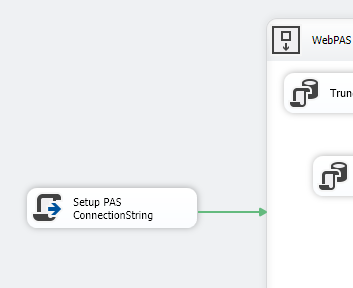
On the script task give access to the params and the varaibles

In the script task build the connectionString from the params and 

Once package is deployed configure the param values as required


Thursday, 21 February 2019

SSIS manipulating variables and params in a script task


For the script task to be able to access varaibles and parameters the task needs to be given access to them. Do this by double clicking it and entering them as either readonly or readwrite values.


Getting and setting variables

string query = Convert.ToString(Dts.Variables["User::PrimaryNurseQuery"].Value);

Dts.Variables["User::PrimaryNurseQuery"].Value = query;

Getting parameters

string idsToExclude = Convert.ToString(Dts.Variables["$Package::PrimaryNurseIdsToExclude"].Value);

NOTE: needs the $


The whole thing:


try
{
    bool fireAgain = true;

    string idsToExclude = Convert.ToString(Dts.Variables["$Package::PrimaryNurseIdsToExclude"].Value);
       if (string.IsNullOrEmpty(idsToExclude))
       {
              idsToExclude = "'NoneFound'";
       }

    Dts.Events.FireInformation(10, "Build Primary Nurse SQL Command","Got idsToExclude as " + idsToExclude, "", 0, ref fireAgain);

       string query = Convert.ToString(Dts.Variables["User::PrimaryNurseQuery"].Value);

    query = query.Replace("'ReplaceMe'", idsToExclude);

       Dts.Variables["User::PrimaryNurseQuery"].Value = query;

       Dts.Events.FireInformation(10, "Build Primary Nurse SQL Command", "Query to use is " + query, "", 0,ref fireAgain);

       Dts.TaskResult = (int) ScriptResults.Success;
}
catch (Exception ex)
{
       MessageBox.Show(ex.ToString());
    Dts.Events.FireError(10, "Build Primary Nurse SQL Command", "Error: " + ex.ToString(), "", 0);
    Dts.TaskResult = (int) ScriptResults.Failure;
}

SSIS ADO.net has no option to run a query from a variable

why would you do this to me ado.net?

There is no option to run 'SQL command from variable' like the OLD DB source. Can use expressions to get around this.

No option to use a variable holding the command:


Go to the Data Flow and click on the back ground (i.e. make sure you don't have a task selected)
marvel at my naming scheme.

Go to the properties and locate the Expressions

Click the + and then the ... to open the expression builder. On the right hand side you can find the SqlCommand property for the souce object then use the expression builder to either use a variable for the whole query, or build up a query manually

Manually constructing the query looks something like this:

"SELECT field1, field2 FROM table1 WHERE table1.nhi in (" + @[User::AdmissionNhiLeadingSpaceList] + ")"


SSIS using variables and params in queries

Params can be set at design time and updated once the package is deployed - can put params or parts of queries into these
Variables are internal to the package & can be set at design time but not updated once deployed; sql can be exectued and the results put into a variable - can put variables or parts of variables into querries


Putting a query into a param so it can be updated after package is deployed


  1. Add the param on the Parameters tab
  2. When querying the data tell it to use the command in the variable. The '$Package' syntax with the $ appears to be for params e.g. $Package::PrimaryNurseQuery. Variables are like User::MyVariableName.
     
  3. Once the package is deployed access the parameters in SSIS by right clicking the package

  4. Update the parameter to whatever is needed

Selecting data into a variable, then using that variable as part of a subsequent query

The variable can be used by multiple containers
  1. Create a variable in SSIS -> Variables that will store the result of a query. Can put a dummy value in it to start with
  2. Create another variable that holds the template for your second query, called something like the poorly named 'SQLCommandMHSmart'. It holds something like SELECT field1, field2 FROM table1 WHERE table1.admissionNumber in (encounterList) AND table1.nhi in (nhiList). This is bad SQL, the 'encounterList' and 'nhiList' will be replaced with values later e.g. encounterList would be replaced with the string '1234567','222222','323456'.
  3. Create an Execute SQL task 
  4. Put the query into the execute sql task, this one will return data in format 'value1','value2','value3'... so that it can easily be used in an 'in' clause. 
  5. This is what this query looks like
  6. Set the Execute SQL task to store data into the variable
  7. Create a script task that is going to use the above variable and build up a new query and will store the constructed query in another variable (in this case SQLCommandMHSmart). This is kind of dumb, it's really just doing string manipulation and script tasks are annoying to use. 
  8. First, set the script task so it has access to the right variables
  9. Click the Edit Script button and wait for eternity for the new instance of visual studio to open. It takes a while. Feel yourself aging. Look, here comes retirement. The script task contents will look something like this:
  10. it's very exciting string manipulation, putting the contents of one variable into the template held by a second variable, then saving that back into the second variable.
  11. The query is now ready to use. When getting data from the next source set the query as coming from the variable


Sunday, 16 September 2018

Getting groups (including nested) for AD user - AccountManagement vs DirectorySearcher vs WindowsIdentity


Testing to see what is fastest to get all groups (i.e. include nested groups, not just top level groups) => WindowsIdentity appears to easily be the fastest, followed by directorysearcher and then accountManagement.

Over 50 tests:
WindowsIdentity average of .3 seconds
DirectorySearcher average of  1.2 seconds
AccountManagement average of 2.3 seconds


Suspect there is a reason why not to use WindowsIdentity because it is so much faster, but not sure what its restrictions are yet.


    class Program
    {
        static AccountManagementService ams = new AccountManagementService();
        static DirectorySearcherService dss = new DirectorySearcherService();
        static WindowsIdentityService wis = new WindowsIdentityService();

        static void Main(string[] args)
        {
            var userId = ConfigurationManager.AppSettings["UsernameToFind"];
            var iterations = 50;
            var amsTimeTaken = new List<long>();
            var dssTimeTaken = new List<long>();
            var wisTimeTaken = new List<long>();

            for (var i = 0; i < iterations; i++)
            {
                amsTimeTaken.Add(CallAms(userId));
                dssTimeTaken.Add(CallDss(userId));
                wisTimeTaken.Add(CallWis(userId));
                Console.WriteLine($"iteration {i} done");
            }

            Console.WriteLine($"AMS average is {(amsTimeTaken.Sum() / iterations)}");
            Console.WriteLine($"DSS average is {(dssTimeTaken.Sum() / iterations)}");
            Console.WriteLine($"WIS average is {(wisTimeTaken.Sum() / iterations)}");

            Console.ReadKey();
        }

        static long CallAms(string userId)
        {
            var watch = System.Diagnostics.Stopwatch.StartNew();
            ams.Lookup(userId);
            watch.Stop();
            return watch.ElapsedMilliseconds;
        }
        static long CallDss(string userId)
        {
            var watch = System.Diagnostics.Stopwatch.StartNew();
            dss.Lookup(userId);
            watch.Stop();
            return watch.ElapsedMilliseconds;
        }
        static long CallWis(string userId)
        {
            var watch = System.Diagnostics.Stopwatch.StartNew();
            wis.Lookup(userId);
            watch.Stop();
            return watch.ElapsedMilliseconds;
        }
    }


    public class WindowsIdentityService
    {
        public List<string> Lookup(string userName)
        {
            List<string> result = new List<string>();
            WindowsIdentity wi = new WindowsIdentity(userName);

            foreach (IdentityReference group in wi.Groups)
            {
                try
                {
                    result.Add(group.Translate(typeof(NTAccount)).ToString().Replace("HIQ\\",""));
                }
                catch (Exception ex) { }
            }
            return result;
        }
    }

    public class AccountManagementService
    {
        string _domain = ConfigurationManager.AppSettings["AmsDomain"];
        public List<string> Lookup(string userId)
        {
            var output = new List<string>();

            using (var ctx = new PrincipalContext(ContextType.Domain, _domain))
            {
                using (var user = UserPrincipal.FindByIdentity(ctx, userId))
                {
                    if (user != null)
                    {
                        output = user.GetAuthorizationGroups() //this returns a collection of principal objects
                            .Select(x => x.SamAccountName)
                            .ToList();
                    }
                }
            }
            return output;
        }
    }


    public class DirectorySearcherService
    {

        public List<string> Lookup(string userId)
        {
            List<string> userNestedMembership = new List<string>();
           
            DirectoryEntry domainConnection = new DirectoryEntry();
            domainConnection.Path = ConfigurationManager.AppSettings["DssDomainPath"];

            DirectorySearcher samSearcher = new DirectorySearcher();
           
            samSearcher.SearchRoot = domainConnection;
            samSearcher.Filter = "(samAccountName=" + userId + ")";
            samSearcher.PropertiesToLoad.Add("displayName");

            SearchResult samResult = samSearcher.FindOne();

            if (samResult != null)
            {
                DirectoryEntry theUser = samResult.GetDirectoryEntry();
                theUser.RefreshCache(new string[] { "tokenGroups" });

                foreach (byte[] resultBytes in theUser.Properties["tokenGroups"])
                {
                    System.Security.Principal.SecurityIdentifier mySID = new System.Security.Principal.SecurityIdentifier(resultBytes, 0);

                    DirectorySearcher sidSearcher = new DirectorySearcher();

                    sidSearcher.SearchRoot = domainConnection;
                    sidSearcher.Filter = "(objectSid=" + mySID.Value + ")";
                    sidSearcher.PropertiesToLoad.Add("distinguishedName");
                    sidSearcher.PropertiesToLoad.Add("name");

                    SearchResult sidResult = sidSearcher.FindOne();

                    if (sidResult != null)
                    {
                        userNestedMembership.Add((string)sidResult.Properties["name"][0]);
                    }
                }
               
            }
            else
            {
                Console.WriteLine("The user doesn't exist");
            }

            return userNestedMembership;

        }

    }

Tuesday, 14 August 2018

checking if an element contains overflow & appling a style


elements that need to be checked to see if they have any overflow have the .mark-if-overflow class applied to them.

function CheckAllCellsForOverflow() {
    $(".mark-if-overflow .cell-wrapper").each(function (index) {
        if (($(this).prop('scrollWidth') > $(this).width()) || ($(this).prop('scrollHeight') > $(this).height())) {
            $(this).addClass('contains-hidden-overflow');
        } else {
            $(this).removeClass('contains-hidden-overflow');
        }
    });
}

filtering & sorting json in .net

these guys:
using Newtonsoft.Json;
using Newtonsoft.Json.Linq;

via the Newtonsoft.Json nuget package.


Entity in database describing a filter:

    public partial class DisplayGroupDataFilter
    {
        public int Id { get; set; }
        public int GroupId { get; set; }
        public string FilterRoot { get; set; }
        public string PropertyNameToFilterOn { get; set; }
        public string FilterItemValues { get; set; }
        public string FilterType { get; set; }
        public bool Active { get; set; }
   
        public virtual DisplayGroup DisplayGroup { get; set; }
    }

Entity in database describing a sort:

    public partial class DisplayGroupDataSort
    {
        public int Id { get; set; }
        public int GroupId { get; set; }
        public string Field { get; set; }
        public string Direction { get; set; }
        public bool Active { get; set; }
        public int Order { get; set; }
   
        public virtual DisplayGroup DisplayGroup { get; set; }
    }


the DataService:


        /// <summary>
        /// applies filters and sort to supplied json data
        /// </summary>
        /// <param name="data">the json data</param>
        /// <param name="dataFilters">collection of filters to apply to data</param>
        /// <param name="dataSorts">collection of sorts to apply to data</param>
        /// <returns></returns>
        private string ApplManipulationsToGroupData(string data, List<DisplayGroupDataFilter> dataFilters, List<DisplayGroupDataSort> dataSorts)
        {
            JObject jdata = JObject.Parse(data);
            foreach (var filter in dataFilters)
            {
                jdata = ApplyDataFilterToGroupData(jdata, filter);
            }
            if (dataSorts.Any())
            {
                ApplySortToGroupData(jdata, dataSorts);
            }
            return JsonConvert.SerializeObject(jdata);
        }


        private JObject ApplySortToGroupData(JObject data, List<DisplayGroupDataSort> dataSorts)
        {
            // get the collection we want to sort our of the data
            JArray existing = (JArray)data.SelectToken("Location.Rows");
           
            // create a custom comparer that understands how we want sort elements
            var comparer = new JObjectSortComparer(dataSorts);

            // sort the collection using our custom comparer
            var sorted = existing.AsQueryable().OrderBy(obj => (JObject)obj, comparer);
           
            // put the sorted collection back into the orginal data
            data["Location"]["Rows"] = new JArray(sorted);
           
            return data;
        }

        private JObject ApplyDataFilterToGroupData(JObject data, DisplayGroupDataFilter dataFilter)
        {
            JObject jobject = data;

            string filterRoot = dataFilter.FilterRoot; // the node we want to apply the filter at e.g. "Location.Rows";
            string tokenNameToCheck = dataFilter.PropertyNameToFilterOn; // the name of property we want to filter on e.g. "BedId";
            string filterType = dataFilter.FilterType; // the type of filter e.g. "Exclude" or "Include";
            List<string> filterItems = dataFilter.FilterItemValues.Split(',').ToList();  // new List<string> { "K2", "K3" };
            List<JToken> matchedItems = new List<JToken>(); // will contain a list of items that match our filter

            // get the collection we want to apply the filter too
            var rows = jobject.SelectToken(filterRoot);
            // find and make a collection of the items that match our filter
            foreach (var item in rows)
            {
                var value = (string)item.SelectToken(tokenNameToCheck);
                if (filterItems.Contains(value))
                {
                    matchedItems.Add(item);
                }
            }

            // remove any of our matched items
            if (filterType == "Exclude")
            {
                foreach (var item in matchedItems)
                {
                    item.Remove();
                }
            }
            // remove anything not in our matched items (i.e. only keep matches)
            if (filterType == "Include")
            {
                var nonMatches = rows.Where(i => !matchedItems.Contains(i)).ToList();
                foreach (var item in nonMatches)
                {
                    item.Remove();
                }
            }

            return jobject;
        }


The custom comparer that does the actual sorting:

    /// <summary>
    /// compares two jobjects based on a list of sorts (containing a field name and sort direction) passed into the constructor
    /// </summary>
    public class JObjectSortComparer : IComparer<JObject>
    {
        private List<DisplayGroupDataSort> requiredSorts;

        public JObjectSortComparer(List<DisplayGroupDataSort> sorts)
        {
            requiredSorts = sorts;
        }

        public int Compare(JObject a, JObject b)
        {
            return DoCompare(a, b, 0);
        }

        private int DoCompare(JObject a, JObject b, int depth)
        {
            var fieldName = requiredSorts[depth].Field;

            var compareResult = string.Compare((string)a.SelectToken(fieldName), (string)b.SelectToken(fieldName));
            if (requiredSorts[depth].Direction.ToLower() == "desc")
            {
                compareResult = compareResult * -1;
            }

            if (compareResult == 0 && depth < requiredSorts.Count - 1)
            {
                return DoCompare(a, b, depth + 1);
            }

            return compareResult;
        }
    }
